RMPrepUSB – Boot Multiple ISO’s From USB Easily!

Topic - Tips

A numbers of years now I have been playing with tools that would allow one  make a bootable USB Flash disk. I have tried Rufus,  the Microsoft Tool, UNetBootin etc, but none have allowed me to EASILY boot multiple ISO files from 1 Flash disk.

That was until I stumbled across RMPrepUSB (aka Easy2Boot)…

You download a 7.2Mb ZIP file that contains an installer for RMPrepUSB – here. Once downloaded run the setup file.

Next you download the Easy2Boot ZIP file (8Mb / 32Mb) from here.  Once downloaded extract the ZIP to a new folder.

Insert your USB Flash disk.

Open the RMPrepUSB application. This is what it will like this:

RMPrepUSB

Select the USB Flash disk and tick the ‘No User Prompts’ checkbox and select (see screenshot below – click to zoom):

1. Partition Size – MAX
2. Volume Name – Easy2Boot (or whatever name you like!)
3. Bootloader Options – WinPE v2
4. Filesystem and Overrides – FAT32 + Boot as HDD (or NTFS + Boot as HDD) – FAT32 is more compatible with a wider variety of OS’s, but you can’t have files >4GB with FAT32!
5. Copy OS Files – Copy Files=’NO’ – set to the path of the Easy2Boot .zip file you downloaded and extracted
6. Click 6 Prepare drive (this will erase all contents)

E2BSetup

7. Once this has completed, click on Install grub4dos button – answer ‘No’=PBR. (see screenshot above) – use the latest version of grldr if prompted to overwrite it.

You should have a USB Flash disk ready and waiting for your ISO files!

The following folder structure on the drive is where you will be placing the ISO files:

The Main Menu folder
\_ISO\MAINMENU                   <— Payload files (except Windows Install ISOs) that you want listed in the Main Menu go here 

Sub-menu folders: (these folders are listed as menu entries in the Main menu, if populated) – mnu files+payload files should go at level 3.
\_ISO\ANTIVIRUS                    <— for any AV payloads
\_ISO\BACKUP                       <— for any BACKUP payloads
\_ISO\DOS                             <— for any DOS payloads
\_ISO\LINUX                           <— for any LINUX payloads
\_ISO\UTILITIES                      <— for any UTILITIES payloads
\_ISO\WINPE                         <— for any WINPE payloads
 
Special payload-only sub-menu:
\_ISO\AUTO                           <— for payload files only (you can use sub-folders of any name) – all .mnu files are ignored.
 
Windows Install ISO folders: (if any .ISO files are present a Windows entry will be listed in the Main menu)
\_ISO\WINDOWS\SVR2012            <– Server 2012 Install ISOs go here
\_ISO\WINDOWS\SVR2K8R2         <– Server 2008 R2 Install ISOs go here
\_ISO\WINDOWS\VISTA                <– Wndows Vista Install ISOs go here
\_ISO\WINDOWS\WIN7                 <– Winodws 7 Install ISOs go here
\_ISO\WINDOWS\WIN8                 <– Windows 8 and 8.1 Install ISOs go here
\_ISO\WINDOWS\XP                     <– XP Install ISOs (and Win 2003 Install ISOs) go here (XP 64-bit should have ’64’ somewhere in the name of the ISO file)

Once you have finished copying the ISO’s across boot off the USB Flash Disk and you should be greated with a menu that looks like this:

EasyBoot

If you get a new ISO file – just copy it into the relevant folder and boot up! No mess no fuss!  It supports a huge list of ISO’s – check it out here.

This is one tool that every techie should have!
For My Son: Lego Figurines

Topic - Interesting

This post is especially for my son – Ethan – whose current interest revolves around LEGO, and who in a short space of time has managed to accumulate a small collection of LEGO Mini-Figurines. At least the pocket money is being used for something more beneficial than Ben10 figurines (that lay around) or Transformer cars (that transform into a million pieces)…

This got me thinking…what does a LEGO figurine look like INSIDE…well it seems that I did not have to look far. Seems Jason Freeny of MoistProduction.com has had those exact same thoughts and decided to dissect one (when my son saw the pictures below he wanted to also dissect one of his). Have a peak:

A Look Inside a Lego Figurine

A Look Inside a Lego Figurine

More detailed look at how the body of a LEGO Figurine works

More detailed look inside LEGO Figurine

This got me thinking, if LEGO is over 50 years old, what interesting facts are there about these figurines. Visual.ly has a very interesting infographic just about that! Check out these amazing facts!

Lego Mini Figurine Infographic

How cool is that!  Did you know that you can have your own custom LEGO Mini-Figurine made and shipped to you… yup with enough money and this site – http://minifigs.me/ your dream (or a mini you) can become a reality!

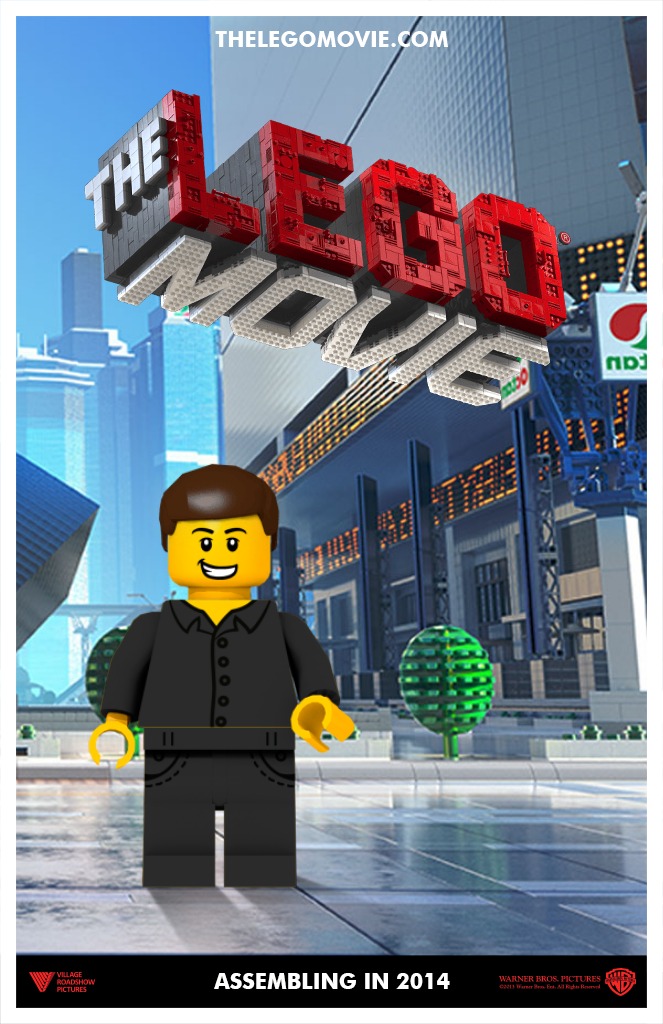
For an easier on the pocket solution – aka FREE – have a look at SigFig Creator in conjunction with the LEGO Movie. You can design your own virtual self and then place it as a backdrop to the LEGO Movie!

MadMike - Lego Movie

MadMike starring in Lego Movie


(Image Credits:  Visual.ly and MoistProduction.com)

Windows App: Multi Commander (File Management)

Topic-Windows

As someone who was brought up using DOS and good old Nortons Commander (remember that) on computers, I have always found that Windows Explorer seems to be lacking “something”. I think it may be the multiple panes in which one can work in, or the keyboard shortcuts, anyway I have been looking around for a long time for an alternative to manage my files in Windows – preferably one that is free 🙂 .

I just happened to stumble across and application called Multi Commander the other day, and after using it for a while I must say I am impressed.

About Screen - Notice the licence info...

About Screen – Notice the licence info…

As you may notice it uses a dual windows interface…

MultiCommander - Dual Panel Interface

Multi Commander – Dual Panel Interface

More screenshots here.

But to quote from the website…

Multi Commander is a multi-tabbed file manager that is an alternative to the standard Windows Explorer.
It uses the very popular and efficient dual-panel layout.

Multi Commander has a everything you need in your daily works with files to make your work fast and efficient.

It has all the standard features like a file manager has like copy, move, rename, view. But Multi Commanders big strength is the special features that allow you to do advanced task with ease. Like Auto-unpacking , Auto-sorting , Browse inside archives, registry and FTP, Search for file, View files and pictures and the Scripting support let you automate many task. And it allows you to do everything from the keyboard using shortcut so you can work fast and efficient.

Features

  • Tabs allowing you to have multiple folders open.
  • Caching that enable fast file browsing.
  • Show files in Detailed, List, or Thumbnail list modes.
  • Background work for all tasks that takes time to finish, allowing you to continue working without interruptions.
  • Customize the layout and colors to fit your styling needs.
  • Extensions and plugins that will increase the functionality of Multi Commander.
  • FTP, Registry , Zip, 7-Zip, Rar , Tar , GZ , Bz2 , Jar  Support
  • View and Change file permissions, Take ownership of files.
  • Picture tools like Convert / Rotate Pictures, View/Remove EXIF tags, Adjust EXIF Date of pictures.
  • Internal picture viewer for Jpg, Png, Gif, Png, Bmp, Tiff and many RAW formats.
  • Show Movie information from IMDB/Rotten tomato as extra columns on you movie files.
  • Audio tools like View Audio file properties, View/Edit MP3 Tags.
  • Open API for developers to create extensions and plugins.
  • Remember selections when you get back from another location when browsing the filesystem.
  • Use mouse and drag and drop or use quick keyboard command for all the task.
  • FileOperations plugins that can automatically sort / unpack files when they are moved or copied.
  • MultiRename tool for fast and safe rename of multiple files/folder, Rule based and supports Undo.
  • File viewer that lets you view files of any size, as ASCII/Unicode/UTF8/Binary and Hex.
  • Take over the file type association from windows. Configure view, edit and open action based on file type and path.
  • Both 32bit and 64bit versions available.
  • Handle folders with many thousands of files with easy, And use power full filters to limit what you want to view.
  • Compare folders and select the files and folders that are different, that are the same and many other options.
  • Powerfull script engine allowing you to create script that automate tasks.
  • Portable. Can be installed and run from portable (USB) device. Will not write any settings/session info on host computer.
  • Multi Language support. English, German, French, Czech, Dutch, Russian, Spanish, Swedish, Chinese (Simplified & Traditional), Polish and Japanese is supported.
  • And a lot more….
  • Full supports for Windows Vista / Windows 7 / Windows 2008 and can be installed without any Administrator rights.

Multi Commander works on Windows XP / 2003 / Vista / Server 2008 (R2) / Windows 7 / Windows 8 / Server 2012.

Check it out at http://multicommander.com

HOWTO: Make Dora the Explorer Party Decorations

Topic-HowTo

In this post you are going to read about how I made other decorations for my daughters Dora the Explorer themed birthday party.

If you have not looked at the previous post on “HOWTO: Make a Dora the Explorer Map” then do yourself a favor and check it out. I recon its pretty cool 🙂

OK lets start…


How To: Make Stars for “Star Catching Game”

I did a Google Image search for “Dora Stars” and came across a blog that contained an A4 page with stars on it (in colour). I was not about to colour in 12 different stars so I opened it in Irfanview and played with the Red, Green and Blue to get different coloured stars from the original image.

I then printed it out in colour on A4 and glued it onto a cardboard box that I had cut up. This was to give the star some support. My wife and I then cut out each star with a scissors.

Then taking some string of about 80cm in length, I tied a paper clip to the one end (bottom) and an adjustable loop on the other end (top).  Using a peg I attached the loop end to the washing line and let the paperclip hang down.  I asked my daughter to reach up and adjusted the string to a height that was just out of reach (so they had to jump to get it).

Next I attached the stars to the string with the paperclip. This was so that nothing would rip or tear when the kids pulled it off the rope.  Here are a few photos…


1. Star Catching - Up close to a star

1. Star Catching – Up close to a star

2. Star Catching - Hanging the stars

2. Star Catching – Hanging the stars

3. Star Catching - Daddy's little star catcher

3. Star Catching – Daddy’s little star catcher


How To: Make Dora and Friends Lawn Characters

Its not a Dora party unless Dora’s friends are there also. We just had to have Isa the Iguana, Swiper the Fox, Boots, Backpack, Map, Tico the Squirrel, Diego, Benny the Bull and of course Dora there!

Once again Google Image search come in handy as I searched for pictures of the different characters. Taking one character at a time I printed out, in colour on an A3 page, each character. I then glued it to cardboard (a cardboard box that I cut up) to provide it support.

Then taking wooden skewer sticks I inserted it into the cardboard at the bottom and left about 7cm of it outside.  This part (the skewer stick) then was placed into the ground.  Making it look like the character was standing there… check it out!

Dora Lawn Characters - Backpack, Map and Tico

Dora Lawn Characters – Backpack, Map and Tico

Dora Lawn Characters - Swiper and Dora

Dora Lawn Characters – Swiper and Dora

Dora Lawn Characters - Isa and Diego

Dora Lawn Characters – Isa and Diego


In closing…

The party although small, was enjoyed by all and I am sure that my little girl will always remember her 3rd birthday Dora the Explorer party…

Dora Party

Dora Party…waiting for friends

14 March 2013 – LCHF Post Word Spreading!

Topic-Health

When I started this blog in 2011 it was for both fun as well as information sharing purposes. It was literally about things that were coming “Out of my Mind”.

I would write up a few posts and then schedule for them to be published and then see how many hits I would get and you know whether it was 4 hits or 20 it really did not matter to me.  What I found interesting however was to see how people stumbled across the site and what topics were interesting to them or not.

There was obviously a long gap from 2011 to today where I did not post – you can read about what I was up to during that time – but when I started blogging again it was really for the same reasons. Share information that I found interesting and just have fun doing it.

One of the topics I really enjoyed writing about was (and still is) my Diabetes journey, and how I was inspired to change my life around and see if I could somehow reverse what this terrible disease was doing to me.  If you read my post “Diabetes – What If…” you would have read about Billy Tosh and Professor Tim Noakes who inspired me to try the LCHF diet lifestyle. Needless to say after my fantastic results both Billy and Tim were considered legends in my eyes – and life savers!

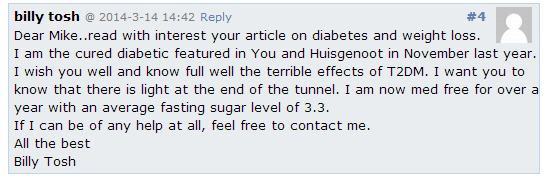
Yesterday, Friday 14 March 2013, I had a quick moment at lunch time to logon to the blog and just make sure all was still well. I checked the comments waiting for approval and saw there were 2 waiting…the first one was spam but the second one let me shout out a Homer Simpson “Whoo Hoo!”  It was a comment from BILLY TOSH!!!

LCF-BillyTosh

Oh My Word!  I was so excited that he had somehow picked up my blog posts! I finally had a way of contacting him and asking a whole bunch of questions! I had a chance to finally thank him for sharing his story that made such a huge difference to my life!  I am sure my staff thought I was crazy (ok more than usual) 🙂 .

Today. 15 March 2013,  I finally had a chance to sit down and turn the PC on and put together a few posts when I noticed that my site stats had suddenly sky rocketed!

LCF-14March2014

328 views in one day! Most of it from Twitter – I am not even on Twitter!

I did a Google search for “Twitter outofmymind.scanlen.com”  and found that it was Billy who tweeted to Professor Noakes about my site!

LCF-BillyTosh-Tweet

All I want to say is “Thank you”.

Thank you Billy Tosh for sharing your story and in doing so enabling me to be finally off of my diabetic medication and feeling great! Also thank you for making contact with me, I promise to be in touch soon with all my questions 🙂 .

Thank you Professor Noakes for sharing with the world the LCHF way of living!  I am sure that Billy and I are not the only ones in this world who lives you have changed by doing so! I believe that great things happen from small beginnings and the more people see what can be achieved by changing the small things in their life (like diet) the more great things it will lead to (like a better and healthier way of life).  Thank you for sharing it with the world. Don’t stop believing!

And lastly a thank you my readers for visiting my site and sharing with me the things that are coming “Out Of My Mind”.

HOWTO: Make a Dora the Explorer Map

Topic-HowTo

Every year we choose a theme for our kids birthday parties and this year as my daughter is a huge fan of Dora the Explorer, we knew what theme it was going to be…

Dora the Explorer All

Now for those of you who don’t know about Dora the Explorer, let me bring you up to speed quickly.  It is a TV Series on NickJnr about a little Latina girl who with her best friend Boots, an English speaking monkey wearing red boots, go on many an adventure.

Dora wears a purple talking backpack, whose name is Backpack; that not only contains the tools to help her on her adventure but also a talking map called, well… Map.  Map shows the route to follow on the adventure … check out this clip if you don’t know about Map…

Now the plan was to have this Dora the Explorer theme party, but then also have the kids go on an adventure (in our back garden). Who do you call when you’ve got a place to go? The Map!

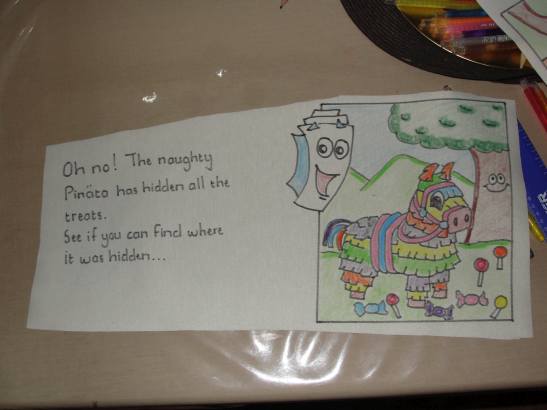
I decided to make 3 “Maps”, one for each activity. The activities were going to be (1) Be a star catcher and catch the stars, (2) Pin the tail to Swiper the Fox and (3) Find the sweets that the Pinata has hidden.  Posts coming soon!

I went to the local fabric store and bought 1/2 meter of cream coloured leatherette material (aka fake leather) it cost me R35,00.  I then cut 3 pieces from it approximately 45cm wide by 25cm high – but I cut it into a wedge shape…


1. Wedge shaped and on the "material" side Map drawn

1. Wedge shaped and on the “material” side Map drawn

2. Map coloured in with frame

2. Map coloured in with frame

3. Roll it up to see where to draw Map's face

3. Roll it up to see where to draw Map’s face

4. Draw Maps face on the "leather" side

4. Draw Maps face on the “leather” side

On the material side of the piece cut I drew a picture of Map with a frame around him.  I then rolled it up and then on the “leather” side of the wedge I drew Maps face.

5. Map #3 taking shap

5. Map #3 taking shape

6. Map #3 Coloured in

6. Map #3 Coloured in

7. Map #1 Coloured in

7. Map #1 Coloured in

8. Map #3 Coloured in

8. Map #3 Coloured in

Next I drew the pictures inside the frames and coloured them in with crayons that my son had.   Here you can see how the 3rd Map is taking shape, and the coloured in ones of Map #1 and Map #2. I just want to state on record that drawing Swiper the Fox is bloody difficult!

9. 99% Complete Maps

9. 99% Complete Maps

10. Map #1 Complete

10. Map #1 Complete

11. Map #2 Complete

11. Map #2 Complete

12. Map #3 Complete

12. Map #3 Complete

I then handed over the maps to my wife to write the instructions. The reason for this is that some say that doctors have a neater handwriting than what I do…

So what you think?  I think they are pretty cool and should last many years 🙂

Be sure to check out my other post on other Dora the Explorer party decorations.